QorusDocs acquires Shark Finesse
Learn moreBook your demo
Please complete the form below and we will contact you to arrange a convenient time to show you how our software can help you.

Oops! Something went wrong while submitting the form.
Please complete the form below and we will contact you to arrange a convenient time to show you how our software can help you.
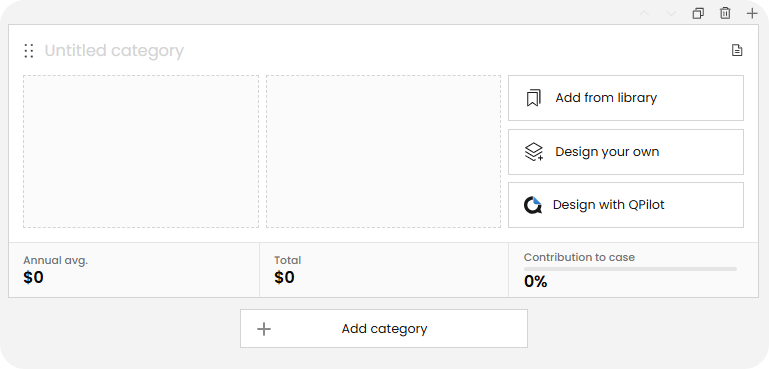
When adding benefits to a new blank session within ValueHub, you will now be given the option to start with ready-made benefit categories, or you can build your own:

If the user chooses to get started with ready-made benefits categories, the below screen will appear where they can choose to include pre-build benefit categories highlighted on the left of the screen:

Alternatively, they may choose to build your own where the user can create a brand-new category with a customised name and benefits. These benefits can be chosen from the existing benefit library, by using QPilot* or by using the design your own functionality:
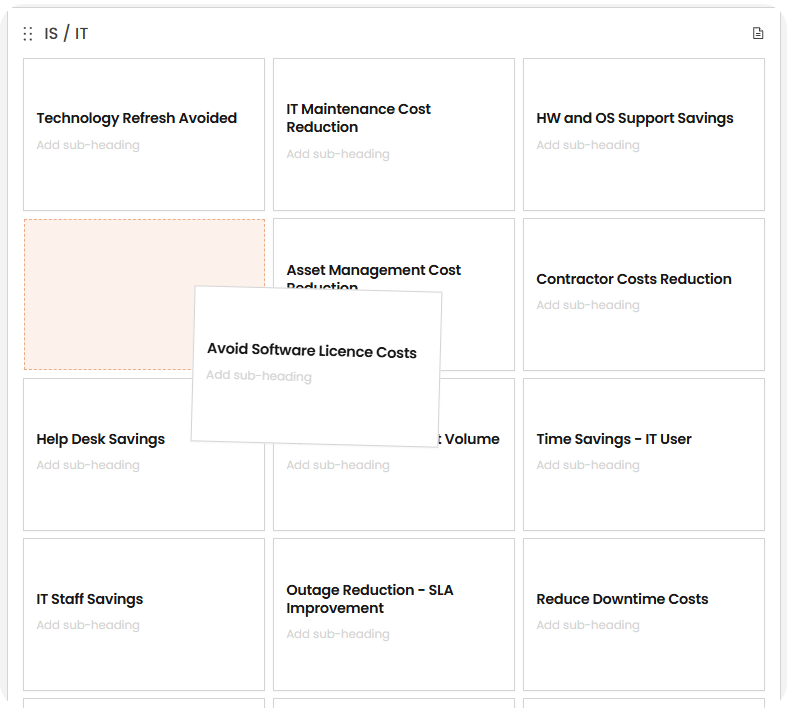
Once you have selected this option a screen will open giving you the opportunity to review and use the pre-existing benefit categories (previously called suites) that are available to you:

At this point you will be able to select the + icon to add any of the categories (e.g. in the above example it could be General and Sales), or you can select the magnifying glass icon to preview which benefits will appear in the category and then add the category from that window:


Once the category and benefits have moved to the middle of the screen you can edit what you see:
To delete or duplicate a benefit, hover over the chosen benefit, three dots will appear in the top right corner, click on this and a drop down will appear displaying Duplicate benefit and Delete benefit:

You can also rename the main benefit title or add a subtitle:

Hover over the benefit at the top left corner and a grab icon will appear, drag and drop to the order you want:
Once this option has been chosen, you will have the option the design a new category with customised benefits. You can populate this category with benefits from an existing library, design your own benefit or design with QPilot*.
Once this option has been selected, the sidebar will appear with a list of benefit blocks, you can select the + button to add a benefit, or drag and drop it over to the category:

You can also preview the benefit before adding it to the category by clicking on the magnifying glass icon and window will pop out with the benefit details:

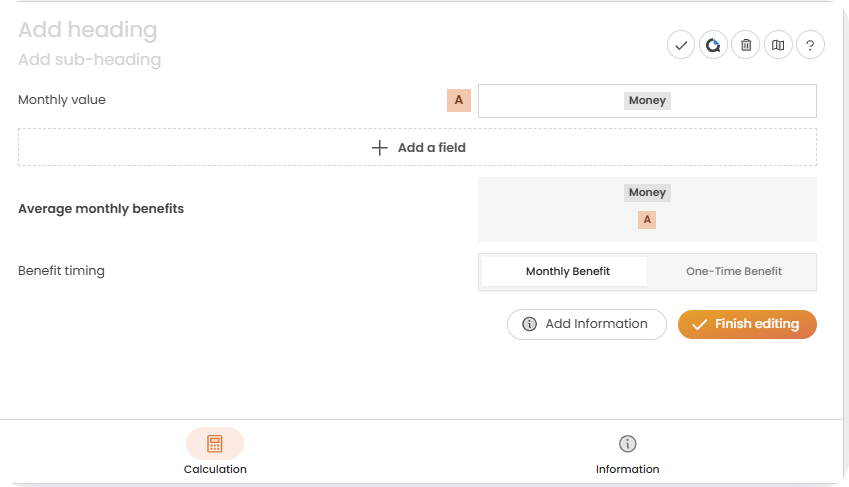
You can use the design your own benefit feature to create a brand-new benefit (this includes titles, a fully customisable calculation, as well as benefit information) the below window will appear:
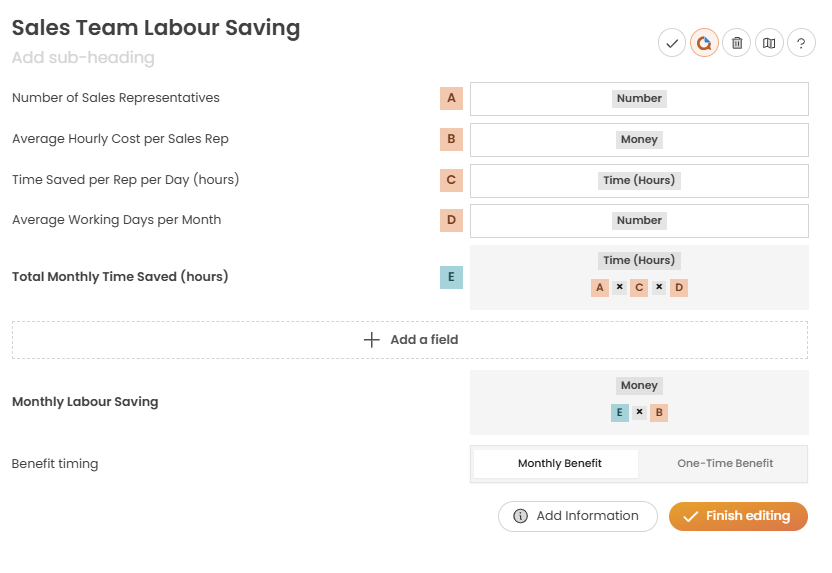
The final option available is to design a benefit using QPilot by entering a prompt with details of what you want the benefit to achieve:
.png)
QPilot will design this calculation for you as well as benefit details behind the calculation (purpose, assumption and theory):
* Available on Enterprise plans


We need to confirm your email address.
To complete the subscription process, please click the link in the email we just sent you.


